
Once you have created a survey, you will be able to edit different settings on the Client and Form Settings page.
Get started at the main Admin page.
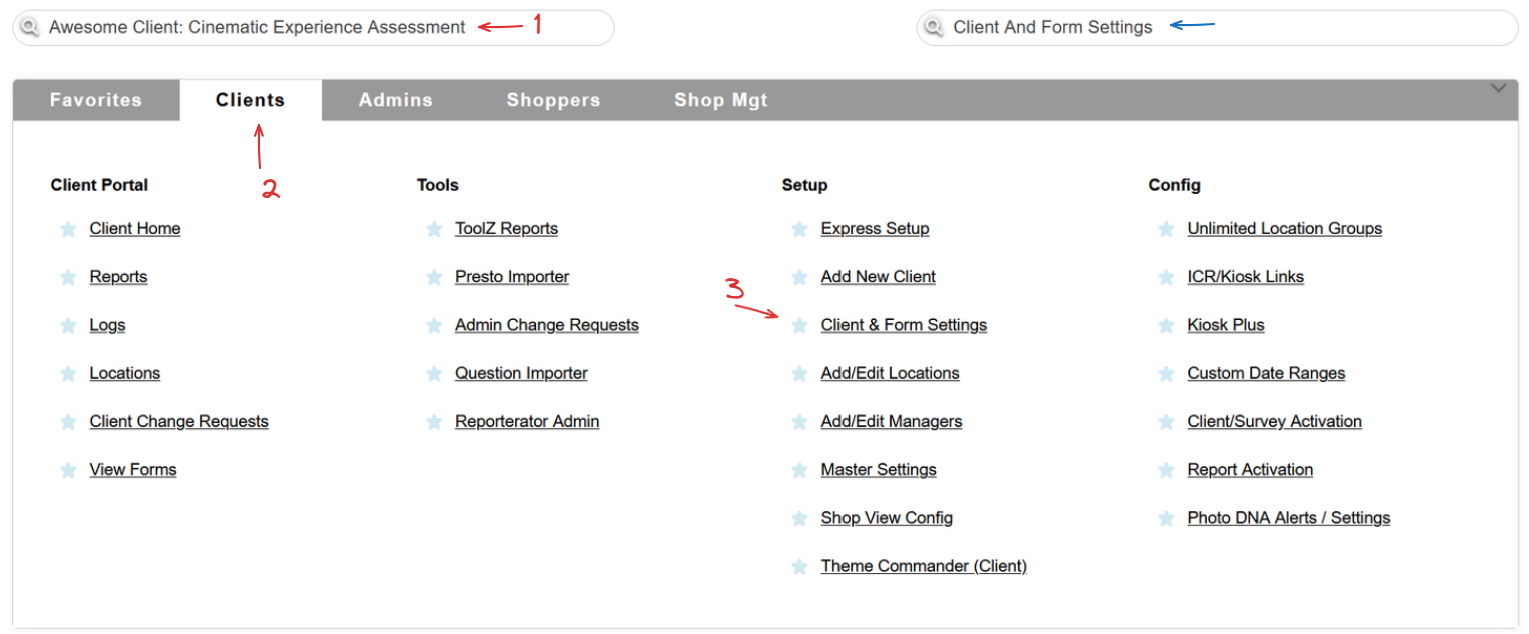
Select a client, head to the Clients tab and use the Clients & Form Settings link in the Setup column, or simply use the Quick Jump bar!
The top of the Client & Form Settings page is dedicated to the surveys of your Client.
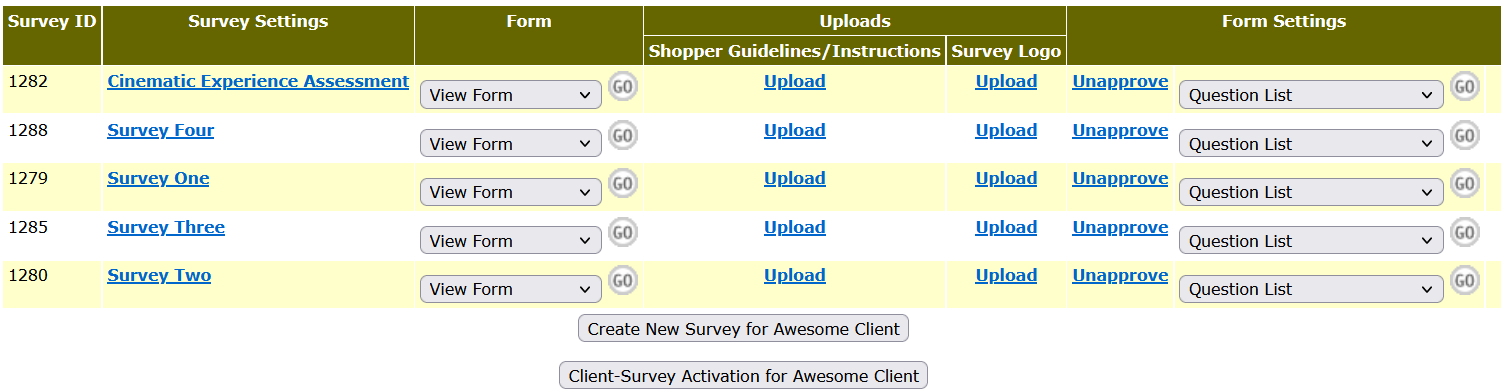
Survey ID is a system generated number. It is always a good choice to note this ID when submitting a Support Tracker!
Using any of the underlined links under the Survey Settings column will open the settings for that survey.
The Form column offers a couple of options to choose from.
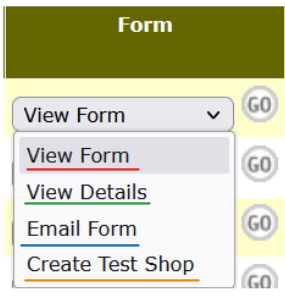
Using the View Form option will display the survey, allowing you to check how it will look like.
Using the View Details option will open Form Detail View, displaying a list of questions, as well as some of the setting you have set up on this survey.
The Email Form option allows you to e-mail the Form Detail View or Regular Form View to a recipient of your choice.
The Create Test Shop button will lead you through the test shop creation wizard. It is always a great idea to test your surveys after creation, or any changes you might make to the Question list or Rulez.
Using the Upload button for the Shopper Guidelines/Instruction will open a new page, allowing you to upload an instructional file for the shoppers.
The Survey Logo Upload button will open a new page, Survey Logo Upload, allowing you to upload a Survey logo.
Form Settings column has quite a few options as well, and their availability to you depends on your account's permissions.
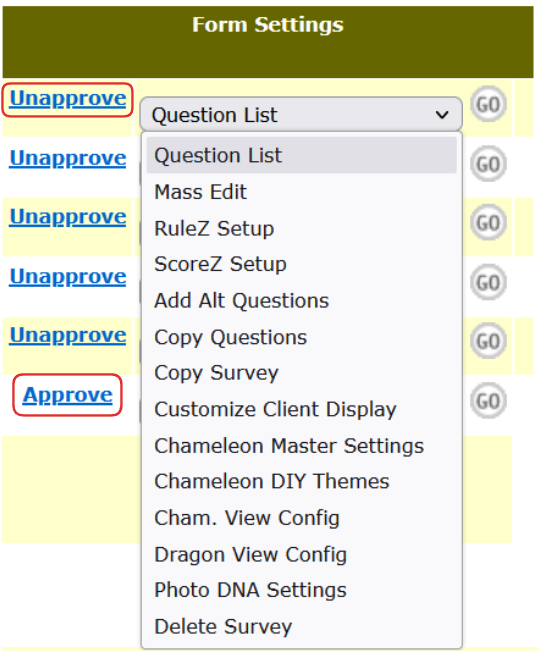
Any new surveys you create, you will need to Approve before they can be used for shops. In the same manner, you can Unapprove any previously approved surveys.
Question List option will open a Question List editor, allowing you to make changes to the survey's question list.
Mass Edit option will open the Mass Editor, allowing you to make changes to multiple fields at the same time.
RuleZ setup will open the RuleZ editor.
ScoreZ setup will do the same thing for ScoreZ.
Add Alt Questions option will forward you to the Alternate Question Text Admin.
Copy Question option will open the Question Copier, while Copy Survey option allows you to use the Copy Survey utility.
Customize Client Display option will allow you to customize the simple version of the client view.
Chameleon Master Settings will forward you to the Chameleon Master settings page.
Cham. Vew Config option allows you to edit the configuration of your Chameleon Shop View, while Dragon View Config does the same thing if you are using Dragon Shop View.
Photo DNA Settings will forward you to the Photo DNA settings page.
Delete Survey option will forward you to a Survey Deletion Admin, allowing you to delete a survey if possible.
Recalc Shops
If there were changes to the survey that may affect the scoring of existing shops, an Access Recalc button will be available at the right side of the Form Settings column. You can read more about it here!
The two buttons at the bottom of this section allow two additional actions.

Hit the Create New Survey button if you want to create a new survey for this client.
Client-Survey Activation button will forward you to the Activation Admin, allowing you to activate or deactivate the survey.
 The bottom part of this page is dedicated to the Client settings. We have covered the details of those in a different help article.