
Once your Client and Survey have been set up, you will most likely find yourself pondering over the Question List page.
Get started at the main Admin page.
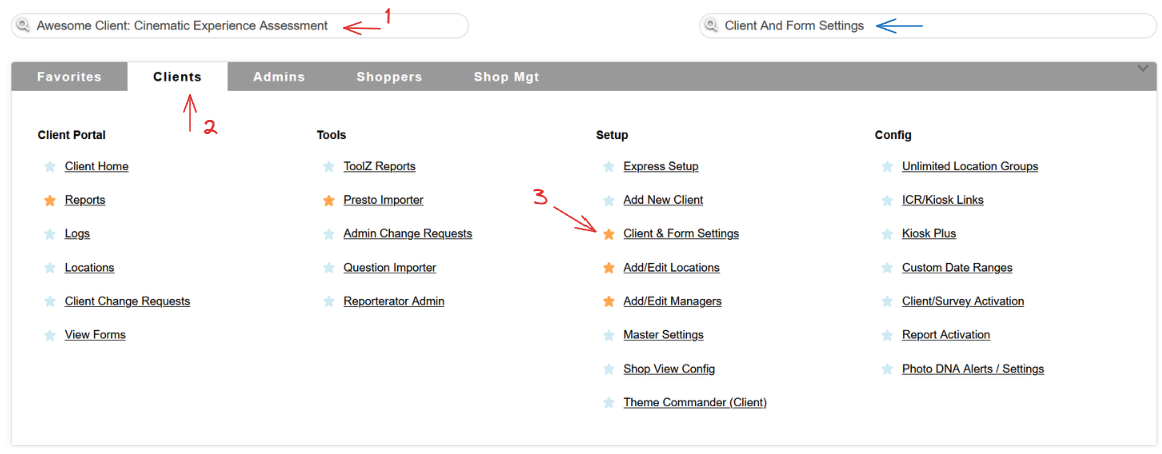
Select a client, head to the Clients tab and use the Clients & Form Settings link in the Setup column, or simply use the Quick Jump bar!
Once on the Client Administration page, find the name of the survey you want to check the Question List for.

From the Form Settings dropdown, select the Question List option and hit the GO button.
There is quite a bit going on here, so we will go through each section of this page.
Control buttons

The control bar at the top of the page allows easy access to different functionalities related to the Question List, as well as the Survey Settings page.
You can refresh your knowledge on Question Importer and Mass Editor in different articles of the knowledge base.
Adding Questions

The middle area lets you know the Client and Survey name, as well as the Survey ID.
 It is always a great idea to note both the Client and Survey ID when you are submitting a Support Tracker!
You are able to add a question, add a grid and edit the question visibility with a simple click of a button.
Question List Section
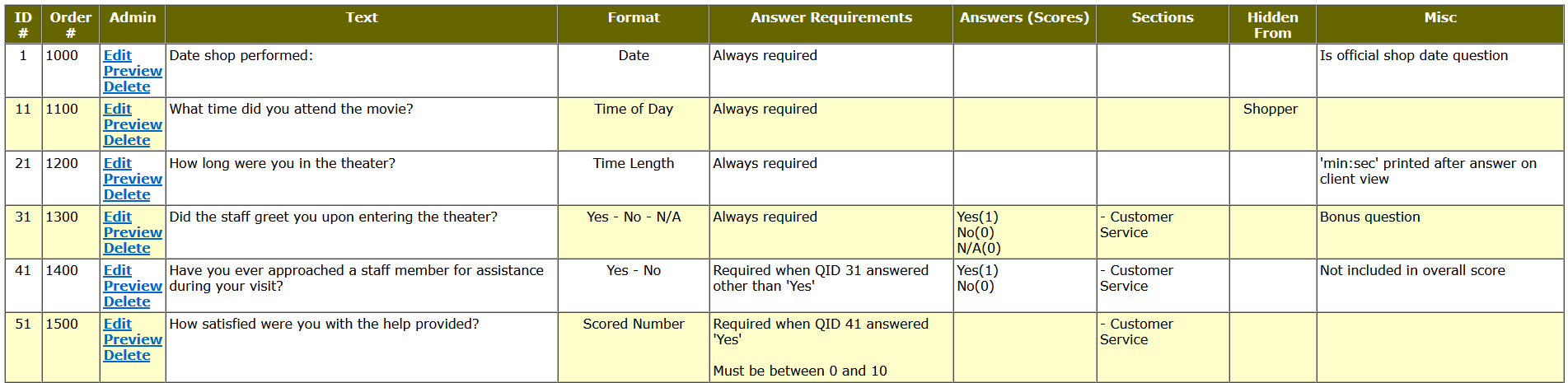
The Question List section is designed to display useful information about each question at a glance.
Remember to always make a note of Question ID and, if needed, Question Order when you are submitting a Support Tracker! Both come quite handy when dealing with RuleZ and ScoreZ as well.
You can read up on Question Formats and Sections in other parts of our knowledge base.
The Answer requirements, Scores, and question visibility can be easily set up using the Edit link from the Admin section.