
Using shopper disqualifications is a good way to keep track of the shopper behaviour.
Get started on the main Admin Page.

Since this is shopper related, there is no need to preselect a client and survey. Simply use the QuickJump bar and search for 'disqualification'.
On the Shopper Disqualification main page enter the shopper's last name, their email or their ID and use the Search button.

Once you select a shopper, you can search for their disqualifications, add a new one, and filter by client you want to add a disqualification for, or list by.
Adding a disqualification
Using the Add DQ button will open a window allowing you to input the disqualification comment. Everything else will be automatically filled in for you
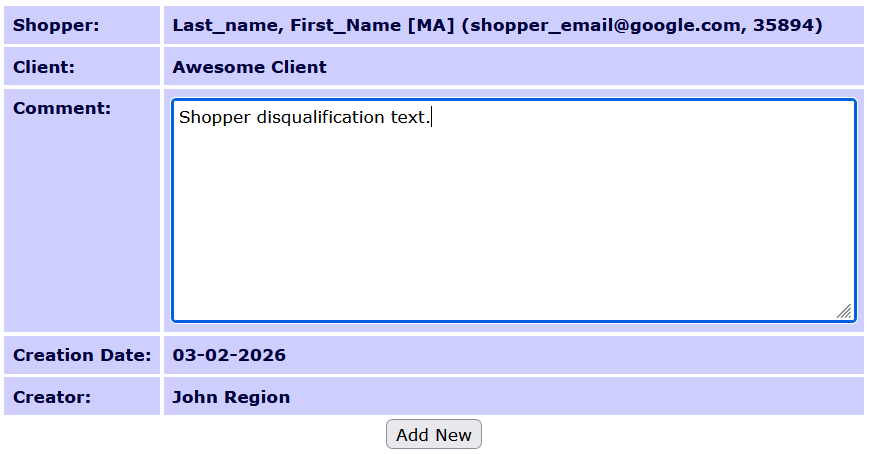
Use the Add New button to confirm your entry.
Searching for disqualifications
Once a shopper has any disqualifications, you can list them.

To see the comment text, use the plus or minus button in the Expand column. The page also allows you to edit, or simply delete the disqualification from the shopper.
Viewing disqualifications
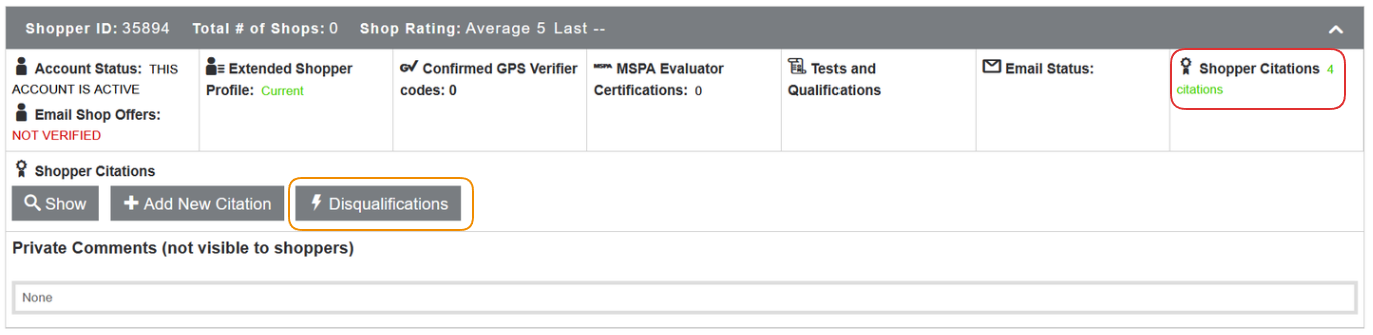
Using the Disqualifications button in the Shopper Citations section on the Shop Log page will also open the Shopper Disqualification admin page, listing the disqualifications added to the shopper.
Additionally, if a shopper has a disqualification, this will be visible on shopper search in the Process Applications page of the AutoScheduling process.
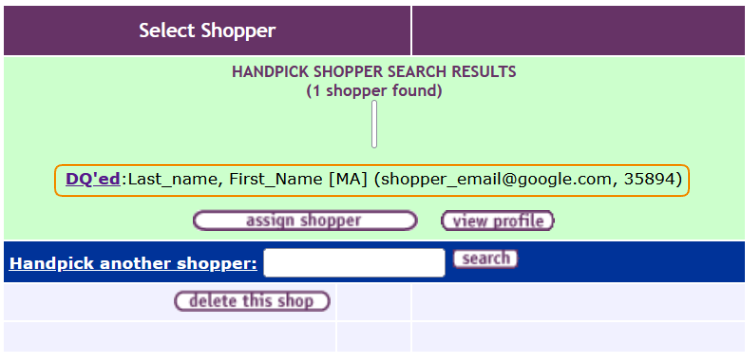
You can use the DQ'ed button to list the shopper's disqualifications.