
To copy questions from one survey to the other, you can use the Copy Questions utility.
Get started on the main Admin Page.
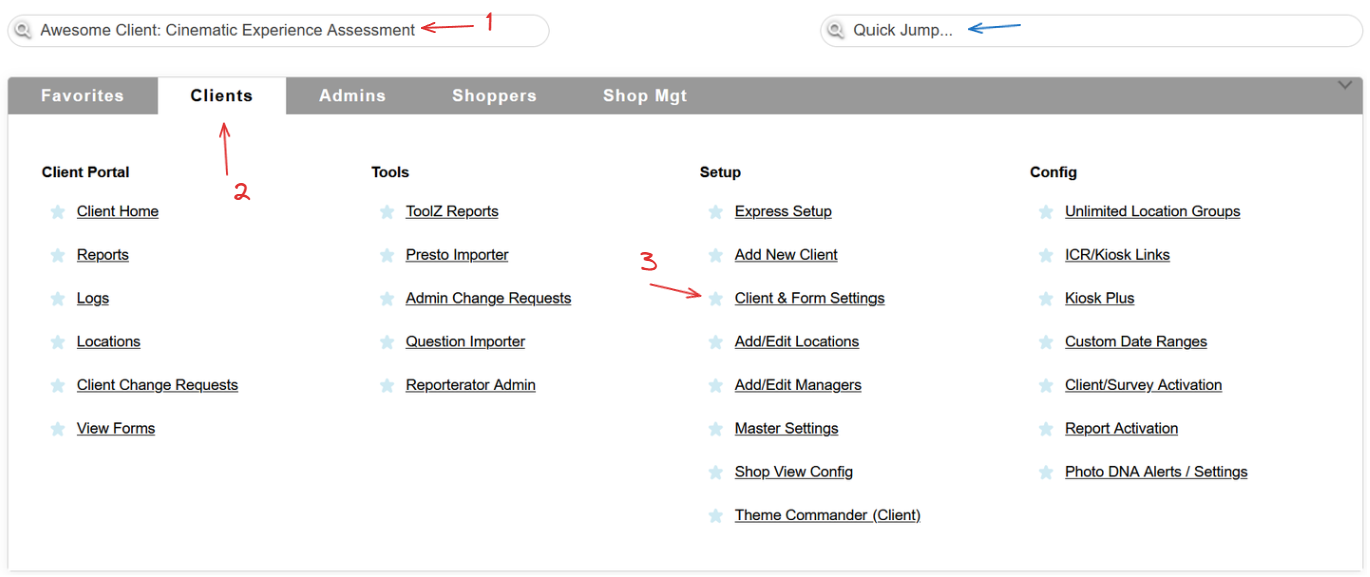
Select a client, head to the Clients tab and use the Client & Form Settings link, or simply use the QuickJump bar.
If you used the Client & Form Settings link, you will be forwarded to the Client Administration page. Head to the Survey section and locate the survey you want to copy.

Select the Copy Questions option from the "Form Settings" dropdown on the right side of the survey section, for the survey that has the original questions you want to copy. Using the GO button will open the Copy Questions page.
Step one of the process is to select the survey you want to copy the questions to.
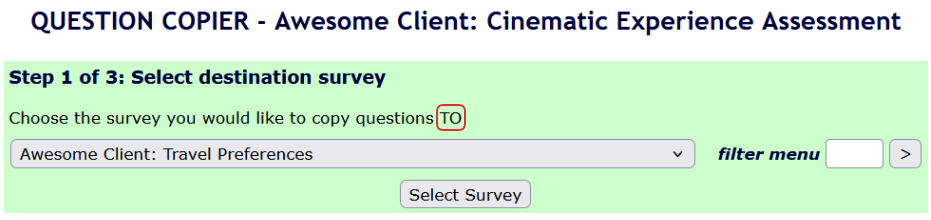
After using the Select Survey button, you will be forwarded to step two.
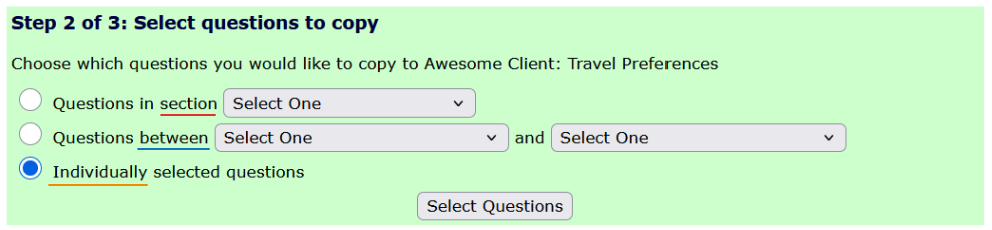
There are three options for you to choose from:
- you can copy all questions in a section,
- all questions between question order numbers you select, or
- copy individually selected questions.
Use the Select Questions button to move to step three, and select the new question placement.
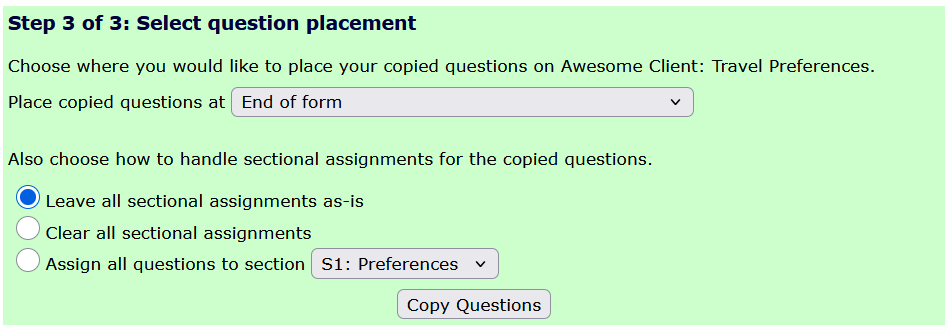
Additionally, you can assign the new questions to a section of the new survey, clear the sectional assignment, or leave the section assignments as is.

Please keep in mind that this will not copy over the sections of the original survey! The new questions will belong to new sections titled 'Section 1', 'Section 2' and so on.