
While we advise you use the Chameleon Shop View for displaying the results of the shop to your clients, there is also a simpler-looking version you can easily set up.
Get started on the main Admin Page.
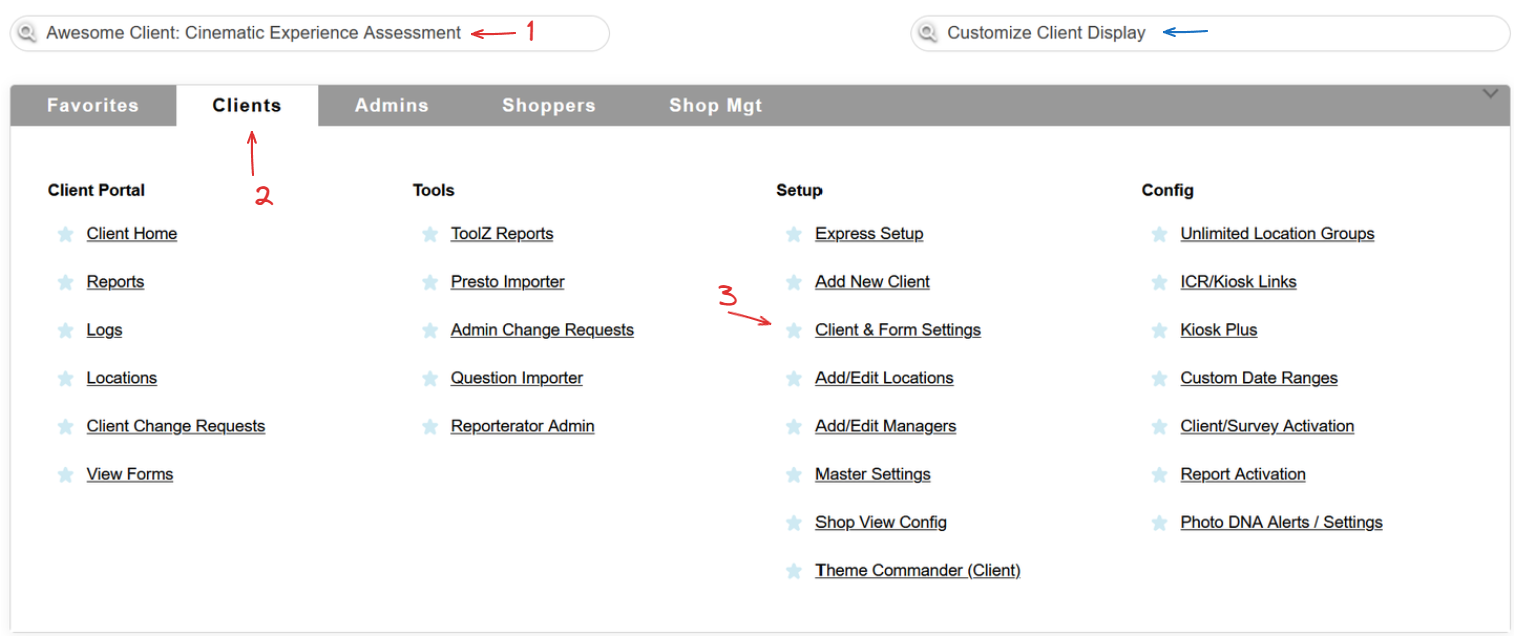
Select a client, head to the Clients tab and use the Client & Form Settings link, or simply use the Quick Jump bar.
If you used the Client & Form Settings link, you will be forwarded to the Client Administration page. Head to the Survey section and locate the survey you want to edit the view for.

Customizing a view
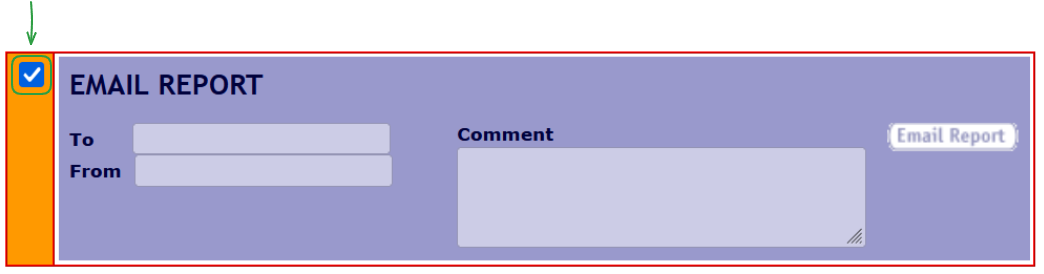
To display or hide a section, use the checkbox on the top left of it.
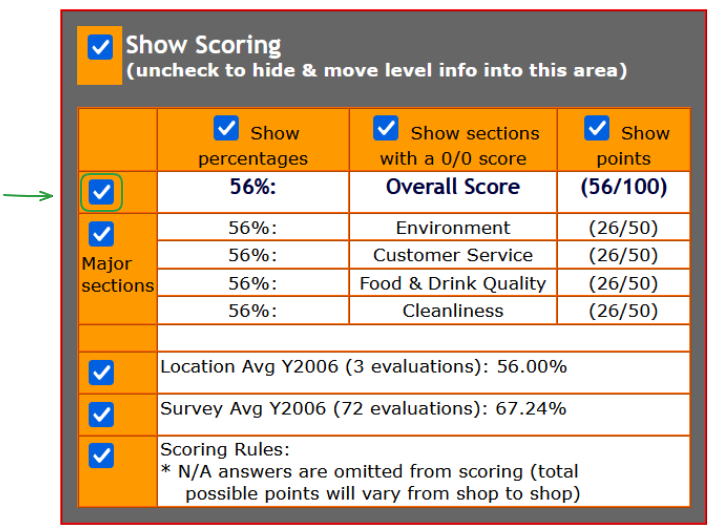
Certain sections allow you to select suboptions, so you can easily use those checkboxes to hide or display the data as well.
Once you are content with your choices, use the Save Changes button at the bottom of the page.

Please keep in mind we strongly advise you use Chameleon Shop View instead!
To have this simple display turned on, you will most likely need to reach out to us through a Support Tracker.