
The Tableau Domo widget allows you to display embedded Domo and/or Tableau data.

Please note: Setting up this widget may require additional assistance from Domo or Tableau.
How to use it?
As mentioned earlier, your client must notify Domo or Tableau that the data will be accessed through a third-party application and have the destination domain approved or whitelisted.
To import the data, simply copy-paste the URL in the URL setting.
In the Widget Data Type settings, you will want to either check or uncheck the option, depending on the type of data you are using.
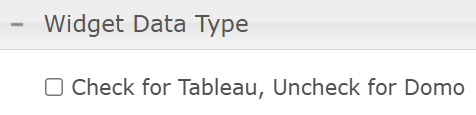
In other words, check the checkbox for Tableau, and uncheck it for Domo.
 We don't advise reusing the same widget to cycle between Tableau and Domo. Instead, use two different widgets, one for each type.
Domo
After the data loads, use the Filter button to refine the displayed data directly within the widget.
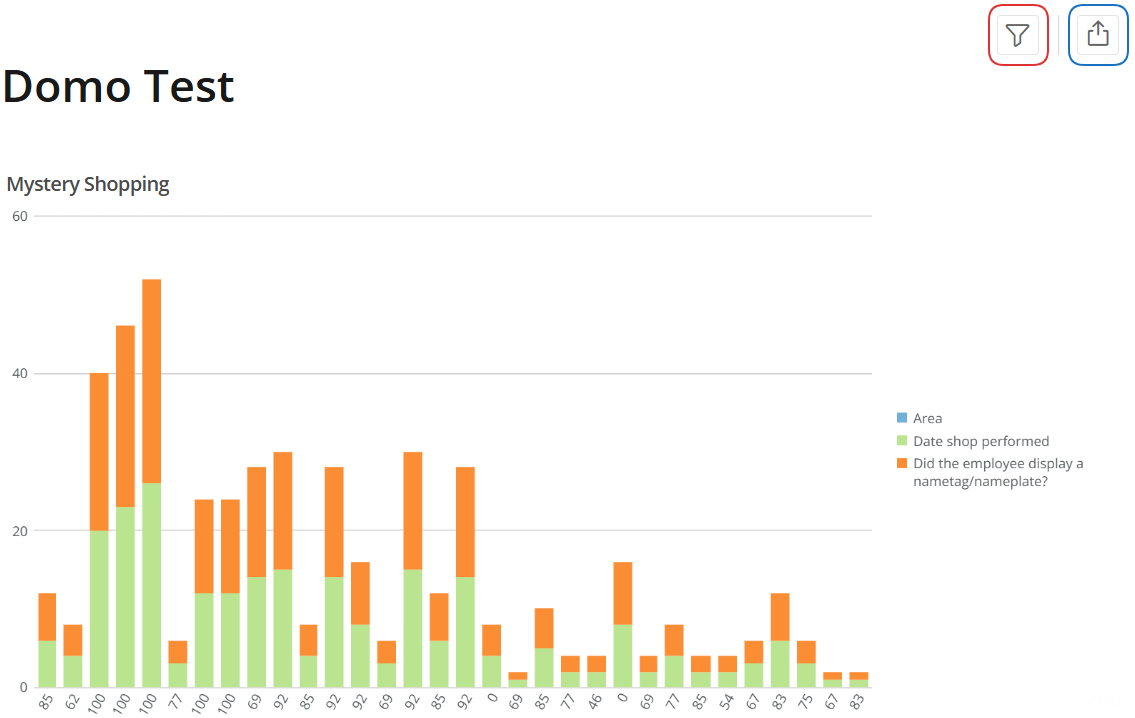
Through the Share Menu button, you can export the data in the PowerPoint or Excel format.
The widget supports several native Domo interactions. Hovering over legend items emphasises the associated data, while clicking a specific bar highlights other bars of the same type.
Tableau
Similar to the Domo version, the Tableau view also allows you to change the displayed data through the usage of the Filter option.
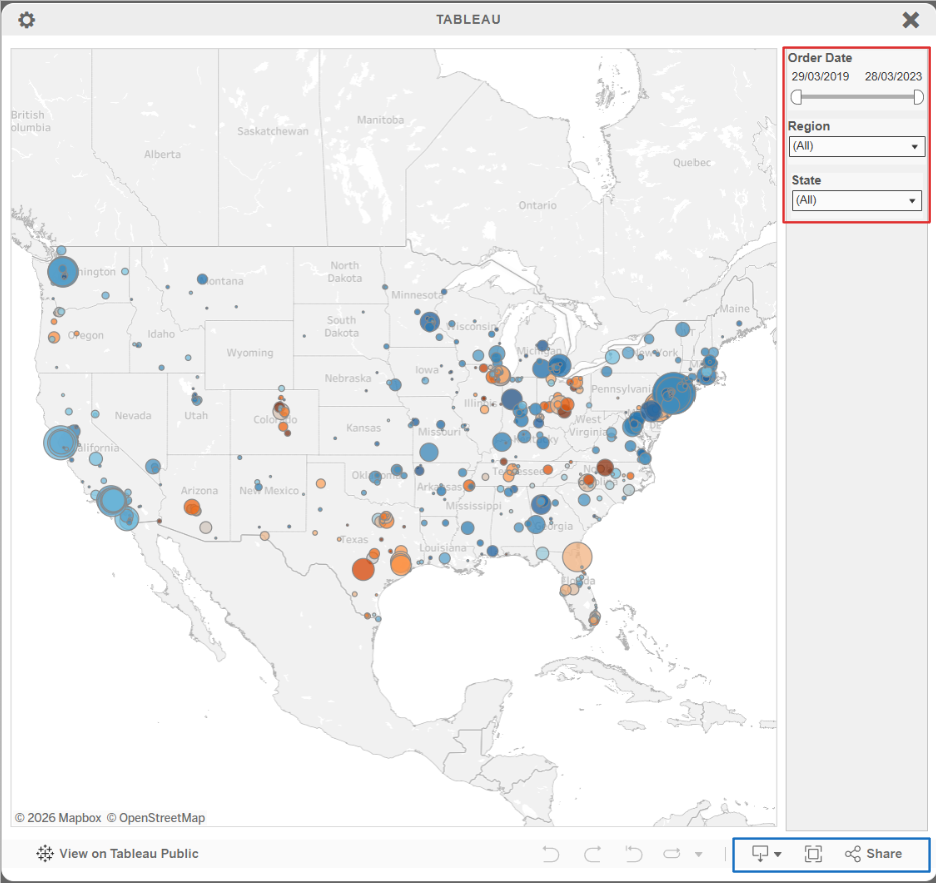
Below the data, you can use the buttons to download the data, view it in full screen or share the view. Using the Share button will provide a link to the Tableau site, not the Dragon Dashboard!