
Sassie's AI Review feature allows running of shopper responses through AIQuery service and applying a particular prompt to it.
To enable it on your system initially, please open a Support Tracker and request this feature.
 The functionality will be visible only to the managers that have the Premium Access permission enabled!
Once it has been enabled on your system, you will need to enable it per-survey.
Simply head to the survey settings and check the checkbox next to the Enable Auto Correct and AI Review option.

If the survey already has Auto Correct enabled, simply save the survey settings, and the Configure AI Review link will appear.

Keep in mind, this feature requires both the Review History and Auto Correct features to be enabled as well!
Any AI changes on the questions will be visible in the Review History tracking bubble, so you can easily track the timeline of the updates.
The two features will automatically be enabled once you select the AI Review option, so simply scroll to the end of the page and save the settings. Once the page reloads, two new links will be displayed next to the AI Review line.
On what type of shop will AI work?
The AI Reviewing feature is compatible with Kiosk*, Kiosk+ and External Collaboration shops.
However, it is not supported with Presto imported/dispatched shops.
To enable this feature for Collaboration shops, the AI feature must be activated on the Secondary MSP. Please note that this also implies the Secondary MSP will be responsible for the associated fees.
*if the shop has been set to the completed status, not simply 'saved for later'
How does it work?
When a shopper sets the shop to the Completed status, an internal timer starts.
If the shop remains in the Completed status for 15 minutes without being modified by anyone other than the shopper, the AI Review will automatically run.
If a shopper makes a change to the shop during that time window, and re-submits the shop into the Completed status, the timer will start another 15-minute countdown. This will happen only if the last event is the shopper completion one.
The shop should not be updated or changed in any way during the 15-minute window, and the shop must be in the Completed status, or the AI Review functionality will not run! This includes, but is not limited, to editing any question answers, or changing the shop status.
No changes should be made during this window!
It might take more than just 15 minutes for the shop to be reviewed by the AI.
If a change is attempted to be made on the shop while the AI Review is in progress, the change will not be saved.

The utility will only run on the shops put into the completed status by the shopper. It will not run if the reviewer completes the shop!
AI Review Mode
There are two AI modes available for selection.

The first one, Analyze the shop as a whole will send the contents of the entire shop to the AI, and have it analyze everything.
The second one, Analyze individual questions will allow you to configure individual questions, and use the AI only on those specific ones.
Please keep in mind that both modes cannot be active at the same time!
Switching to entire-shop mode will deactivate all individual question AI review configurations for the survey you are working on, while switching to individual questions mode will disable entire-shop AI processing.
Analyze the shop as a whole
Before using the Enable slider, please make sure to configure the AI options.
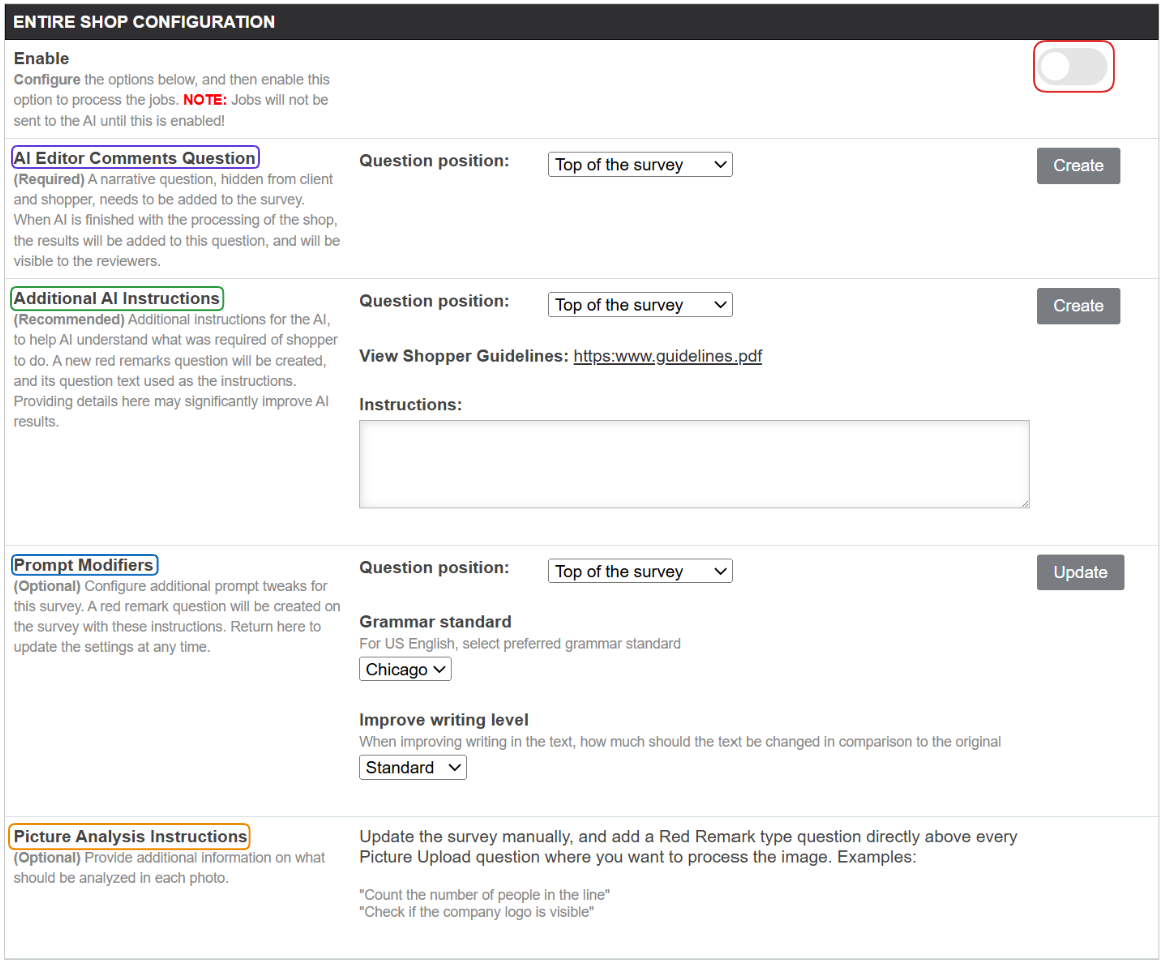
The AI Editor Comments Question will add a narrative question to the top or the bottom of the survey. This question will be hidden from the client and the shopper, but once the AI runs, the results added to this question will be visible to the reviewers. This is the only required option.
The Additional AI Instructions allow you to add specific instructions to the AI to help it understand what was required of the shopper. A new remark will be created either on the top or the bottom of the survey, and the question text will be used as instructions for the AI. While this is not a required field, we strongly recommend you use it, as it might significantly improve the AI results.
Additionally, you can request the AI to respond in a preferred language by adding that instruction to the prompt.
The Prompt Modifiers section allows you to configure additional prompts. A red remarks question, either on top or at the bottom of the survey, will be created with the instructions. You can read more about the Grammar Standards in a different part of our knowledge base.
The Picture Analysis Instructions section allows you to provide additional information on what needs to be analysed in the photo. For this config to work, you will need to add a red remark question directly above every picture upload question for which you want the image processed.
After editing each config, use the Update button for the section. The question will be created, and the page will let you know the QID of it.

Once you are satisfied with the configs, make sure to use the Enable button on the top of the section!
Any changes made after the original setup will take about an hour to be applied to the AI config.
Please keep in mind that this setup requires us to create a new manager on your system. The manager will not have access to any utilities of importance, but will instead serve as a placeholder for the API calls this feature requires.
Analyze individual questions
The AI Review Configuration page displays Available tasks.

Improve writing
The task converts the text into a grammatically correct, professional-sounding text, and works in all languages.
Both the source and the destination questions must be either text or narrative, but the source and destination questions can be the same question!
Sentiment Analysis
The task generates the sentiment analysis score for the input text.
The source field should be a text or a narrative field, and the score can be stored in the text, narrative, radio, pull down menu, number, or scored number question type.
Translate to English (US)
This task translates the answer text to US English.
How to add a task?
To add a new task, use the Add New button and fill in the fields.

Source Question is the question on which you want to perform the AI Review action.
The source question has to be of either text, or narrative, question type.
Target Question is the question to which the answer will be the AI Review's output.
The target question cannot be empty, and it has to be a valid question ID. Quite like the source question, the target question also has to be of either text, or narrative, question type.
If the target question is the same as the source question, the text in the source question will be overwritten with the AI response, and the original will be stored in the question's history.
Task is the action you want to perform on the source question.
The Options column allows you to turn the AI Review, per question, on or off.
Once you are content with the setup, simply save any changes you made.
Tasks, when added, will be executed in the config ID order.
If you need to submit a Support Tracker in relation to the AI Review feature, please do not forget to note the Config ID!
Please do not delete any questions that are used in either the target or the source questions. If you need to do this, open a Support Tracker!
Data security
There will be a special note below the target question, ensuring that the shopper is aware that any data they enter as the question answer will be shared with the third party.

Answers to question that do not have this warning will not be shared with the third party.
The fee for the AI review functionality is $0.25 per shop.
In that price, the following is included:
- Auto Change
- Review history
- AI correct
- Sentiment analysis
- AI translations